Lab 4 - Pseudocoding and Problem-Solving
Challenge
The challenge of this lab was to create pseudocodes for an everyday task and a simple computer game, then turn the pseudocode for the computer game into javascript comments. We then had to include the pseudocodes and javascript comments into the lab page and style the website.
Problems
I struggled a bit with the margins of my pseudocode lists (they wouldn't align to the left of the screen), but I fixed them by deleting all the indents in the HTML.
Reflection
My partner, Helwa Halloum, and I met up in the Rachel Carson computer lab and then the dining hall to work together on the pseudocodes and JS comments. We discussed what needed to go into the pseudocodes and helped each other with the layouts in the lab page. We put a lot of effort into making sure our pseudocodes were as accurate as possible and making sure our lab pages looked nice.
Results
We successfully created our own pseudocodes for our everyday tasks and collaborated on a pseudocode for the game "Sticks". We also made nice layouts for our lab pages. (See below for pseudocodes and javascript comments.)
Lists/Outlines/Pseudocodes
Taking history lessons in Twisted Wonderland:
	1. Click the Twisted Wonderland app icon to start the game on the device
	2. Accept user input
	3. Wait for the game to load
	4. User is prompted to tap the screen at the title screen
	5. Accept user input
	6. At the home screen, navigate to the “Lessons” tile and click it
	7. Accept user input
	8. Scroll through the dorm tiles and navigate to the tile that corresponds to the desired study partner
	9. Accept user input
	10. Click the dorm tile that corresponds to the desired study partner
	11. Accept user input
	12. Click the tile for the desired study partner
	13. Accept user input
	14. Navigate to the “history” tile and click it
	15. Accept user input
	16. Click on one of the empty character slots and select the character card that user wishes to level up
	17. Accept user input
	18. Repeat step 16 until all five character slots are filled
	19. Accept user input
	20. Click the start button
	21. Accept user input
	22. Select how to proceed with lesson
		a. Click the “loop” button to automatically repeat the same lesson until user’s lesson points run out
		b. Click the “auto” button to automatically play through one lesson
		c. Manually tap the screen to go through one (of seven) character turns in a lesson
	23. Accept user input
	24. Lessons will proceed
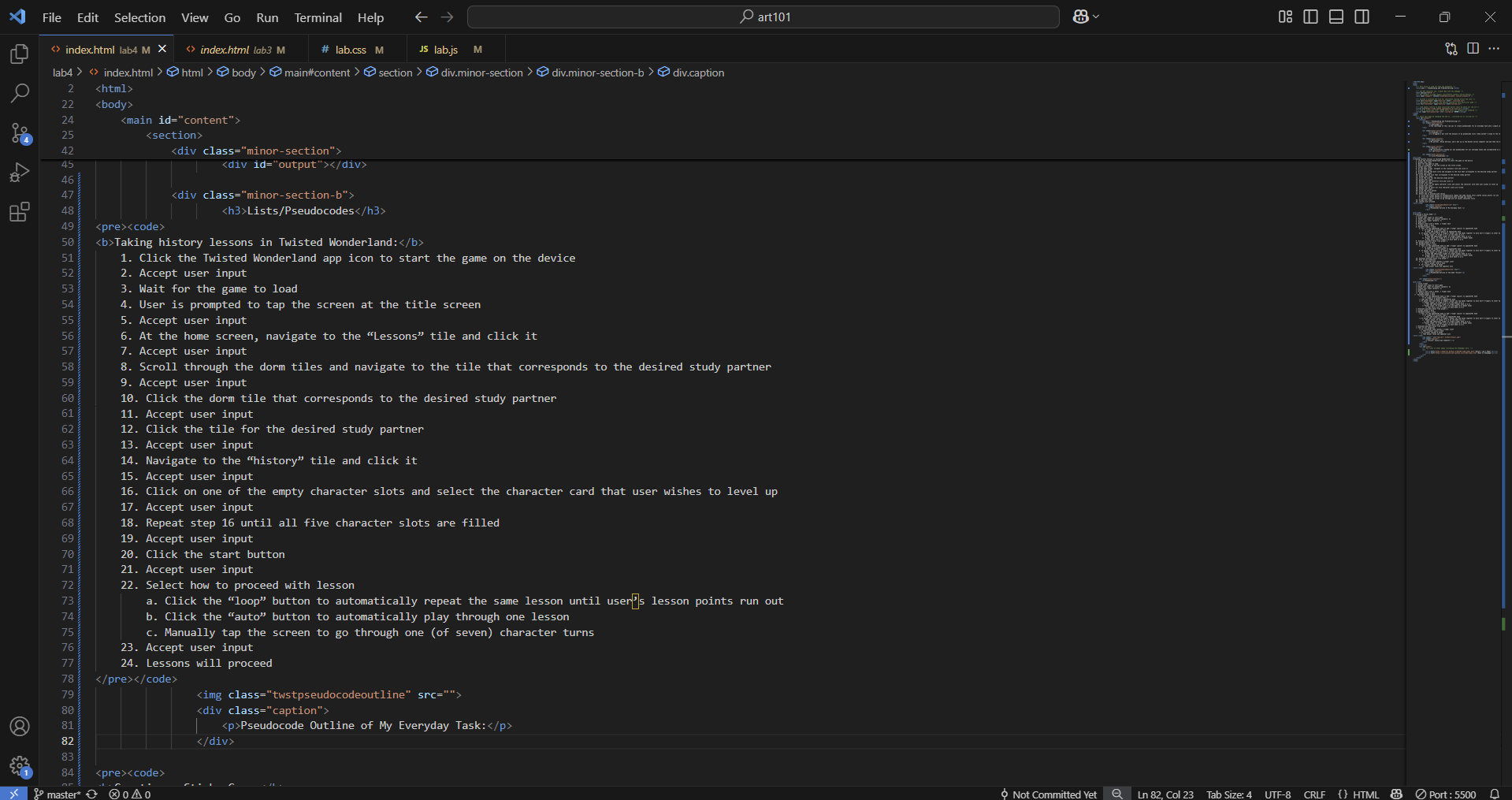
Pseudocode Outline of My Everyday Task Taking History Lessons in Twisted Wonderland:
Creating a Sticks Game:
	1.Title screen
	2. Accept user input to start game
	3. Await user input for players (players: 2)
	4. Accept user input (players: 2)
	5. Game start
	6. Players start with 2 hands, 1 finger each
	7. Accept player 1 move
	8. Validate player 1 move
		a. Tap 1 of the opponent’s hand to add 1 finger (point) to opponent’s hand
			i. If finger # is greater than 1
				• Then add finger # amount to opponent’s hand
		b. If player has even total # fingers, player can tap hands together to move half # fingers to other hand
			i. Player input: If finger # is 3 on one hand (3 & 1)
				• Then add additional finger to single finger hand (2 & 2)
			ii. Player input: If finger # is 4 on one hand (4 & “dead” hand)
				• Then split into 2 fingers on each hand (2 & 2)
	9. Evaluate possible moves from player 1
	10. Accept player 2 move
	11. Validate player 2 move
		a. Tap 1 of the opponent’s hand to add 1 finger (point) to opponent’s hand
			i. If finger # is greater than 1
				• Then add finger # amount to opponent’s hand
		b. If player has even total # fingers, player can tap hands together to move half # fingers to other hand
			i. Player input: If finger # is 3 on one hand (3 & 1)
				• Then add additional finger to single finger hand (2 & 2)
			ii. Player input: If finger # is 4 on one hand (4 & “dead” hand)
				• Then split into 2 fingers on each hand (2 & 2)
	12. Evaluate possible moves from player 2
	13. Test of win condition
		a. If a player’s hand reaches 5 finger count
			i. Then a player loses a hand
		b. If a player reaches 0 hands
			ii. Then player loses and opponent wins
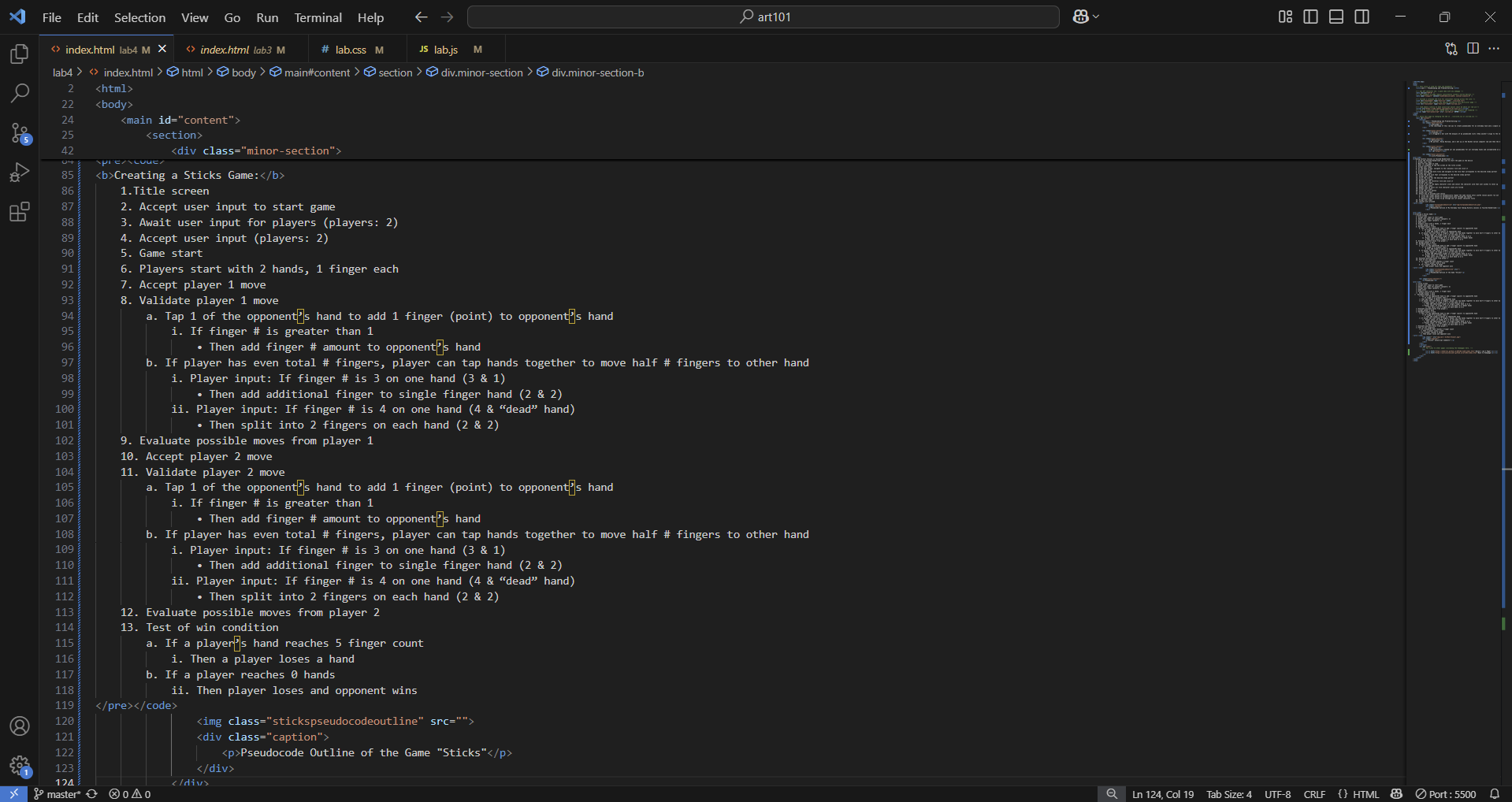
Pseudocode Outline of the Game Sticks
Pseudocode
	// Title screen
	// Accept user input to start game
	// Await user input for players (players: 2)
	// Accept user input (players: 2)
	// Game start
	// Players start with 2 hands, 1 finger each
	//  Accept player 1 move
  //  Validate player 1 move
		// Tap 1 of the opponent’s hand to add 1 finger (point) to opponent’s hand
			// If finger # is greater than 1
        // Then add finger # amount to opponent’s hand
		// If player has even total # fingers, player can tap hands together to move half # fingers to other hand
			// Player input: If finger # is 3 on one hand (3 & 1)
			  // Then add additional finger to single finger hand (2 & 2)
			// Player input: If finger # is 4 on one hand (4 & “dead” hand)
				// Then split into 2 fingers on each hand (2 & 2)
	// Evaluate possible moves from player 1
	// Accept player 2 move
	// Validate player 2 move
		// Tap 1 of the opponent’s hand to add 1 finger (point) to opponent’s hand
			// If finger # is greater than 1
			  // Then add finger # amount to opponent’s hand
		// If player has even total # fingers, player can tap hands together to move half # fingers to other hand
			//  Player input: If finger # is 3 on one hand (3 & 1)
			  // Then add additional finger to single finger hand (2 & 2)
			// Player input: If finger # is 4 on one hand (4 & “dead” hand)
				// Then split into 2 fingers on each hand (2 & 2)
	// Evaluate possible moves from player 2
	// Test of win condition
		// If a player’s hand reaches 5 finger count
		  // Then a player loses a hand
		// If a player reaches 0 hands
		  // Then player loses and opponent wins
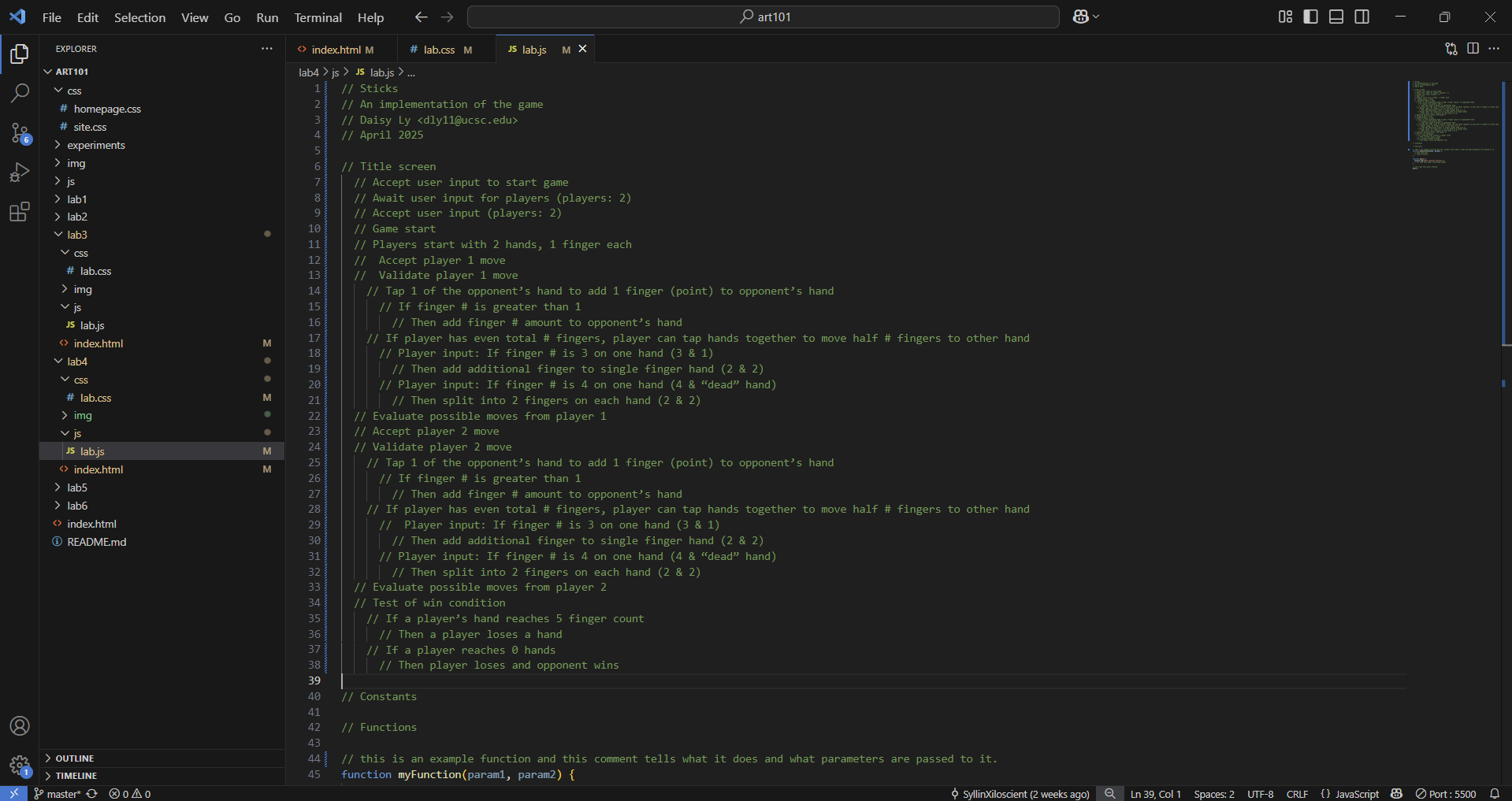
Sticks Javascript Comments: